Halloween 2026 · Video workflow
Backrooms AI Video Generator for a Slow Liminal Shot
A convincing liminal clip needs restraint: one corridor, one camera move, one flickering light. This prompt targets atmosphere instead of a jump scare and opens a real text-to-video workflow.
Credits are charged only when a model run starts. Failed jobs return credits automatically; completed jobs remain in your creations.
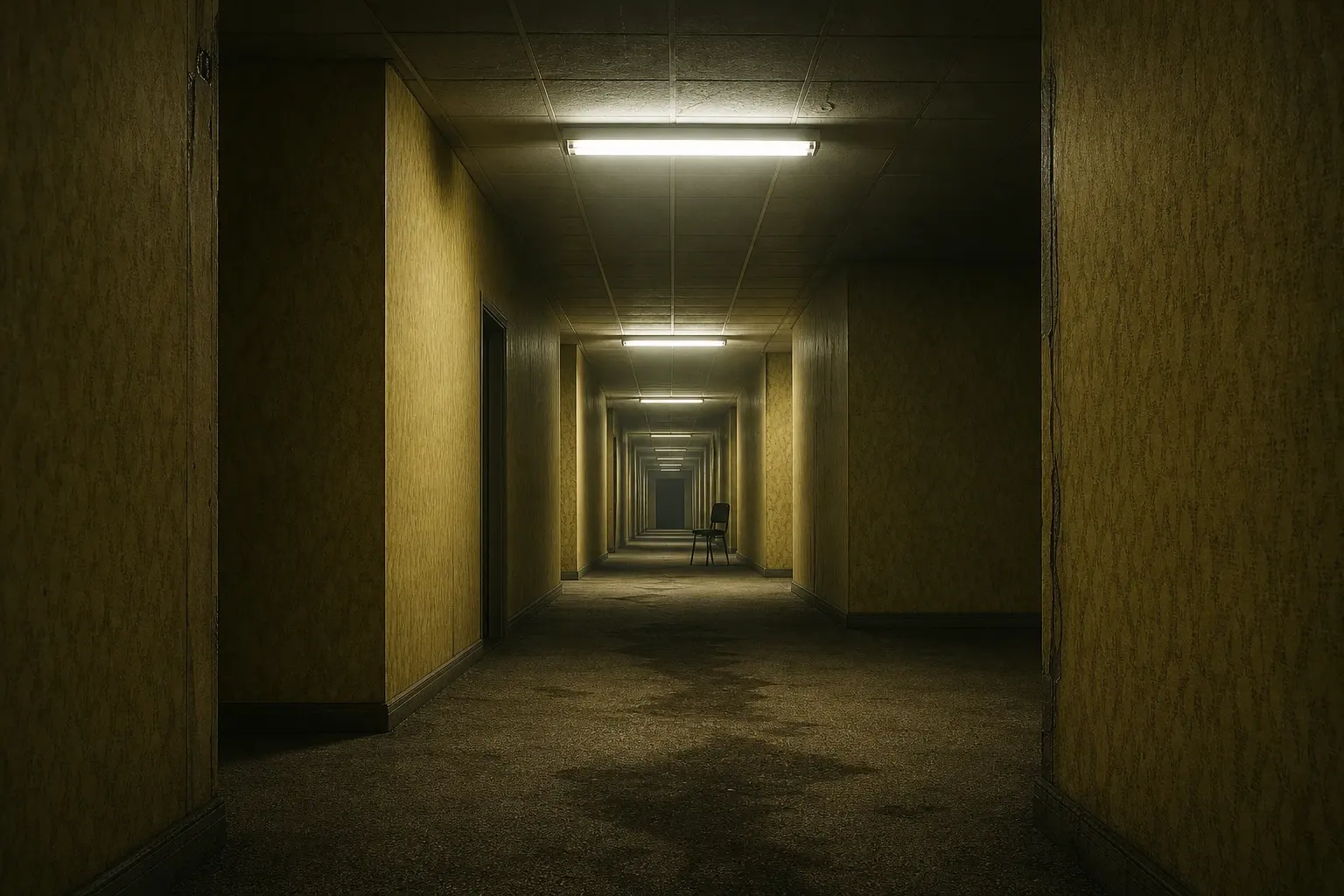
Ready-to-use prompt
The prompt is prefilled when you open a generator. Review it, add your own constraints, and keep the source photo unchanged.
Create a wide cinematic still of an empty liminal office corridor with aged yellow wallpaper, damp carpet, buzzing fluorescent ceiling lights and a distant dark doorway. Use low haze, realistic architectural detail and subtle teal shadows against warm amber light. The space should feel endless and impossible, with one small black chair far down the hall. No people, no gore, no readable text, no logos and no watermarks.
Useful exclusions: No extra people, changed identity, duplicated limbs, distorted hands, copied character designs, readable text, logos or watermarks.
What to watch for
The still establishes the space. The video prompt adds only a slow dolly, one light flicker and drifting haze, which is easier for a model to keep coherent than a complex scene.
One continuous shot
A single slow camera move hides many model limitations and feels more like found footage than a montage.
Architecture must stay still
Doorways, ceiling tiles and perspective should remain stable. Watch for warped walls and moving doorframes.
Atmosphere over jumps
The prompt avoids gore and sudden scares. A flicker and a little haze are enough to create unease.
A reliable three-step run
Upload one clear photo with even light. For pets, keep the eyes and full face unobstructed. For couples, use two separate portraits if one group photo is not available.
Use photos and clips you have permission to edit. These are original costume interpretations; the page does not claim affiliation with any film, game, or character owner.
- 1
Generate or choose a stable corridor still
Use the image prompt first if you need a starting frame. Keep the composition wide and uncluttered.
- 2
Animate with one camera move
Open the video workflow with the prompt already filled. Use the shortest clip for the first test.
- 3
Review motion and geometry
Play the whole clip. Pause-only inspection misses warping, flicker repetition and timeline artifacts.
Choose the engine that fits the job
Each button below opens a real generator. The price shown there is the current price for that run; this page does not reserve or spend credits.
Keep the same number of people as the source photo. Do not invent a third person, duplicate limbs, or replace the face with a different identity.
Edit a photo
Nano Banana through KIE for photo edits and identity-sensitive changes.
Open photo editorGenerate from text
Seedream through KIE for detailed costume and scene generation.
Open text generatorAnimate an image
Wan 2.5 through WaveSpeed for image-to-video and text-to-video clips.
Animate this lookRemix motion
Wan Animate for motion transfer and clip-based character remixing.
Remix a clipThree ways to make the idea real
Choose a look, open it with the matching prompt, upload a photo you own, and review the generated result before spending more credits.
Related Halloween looks
All Halloween looks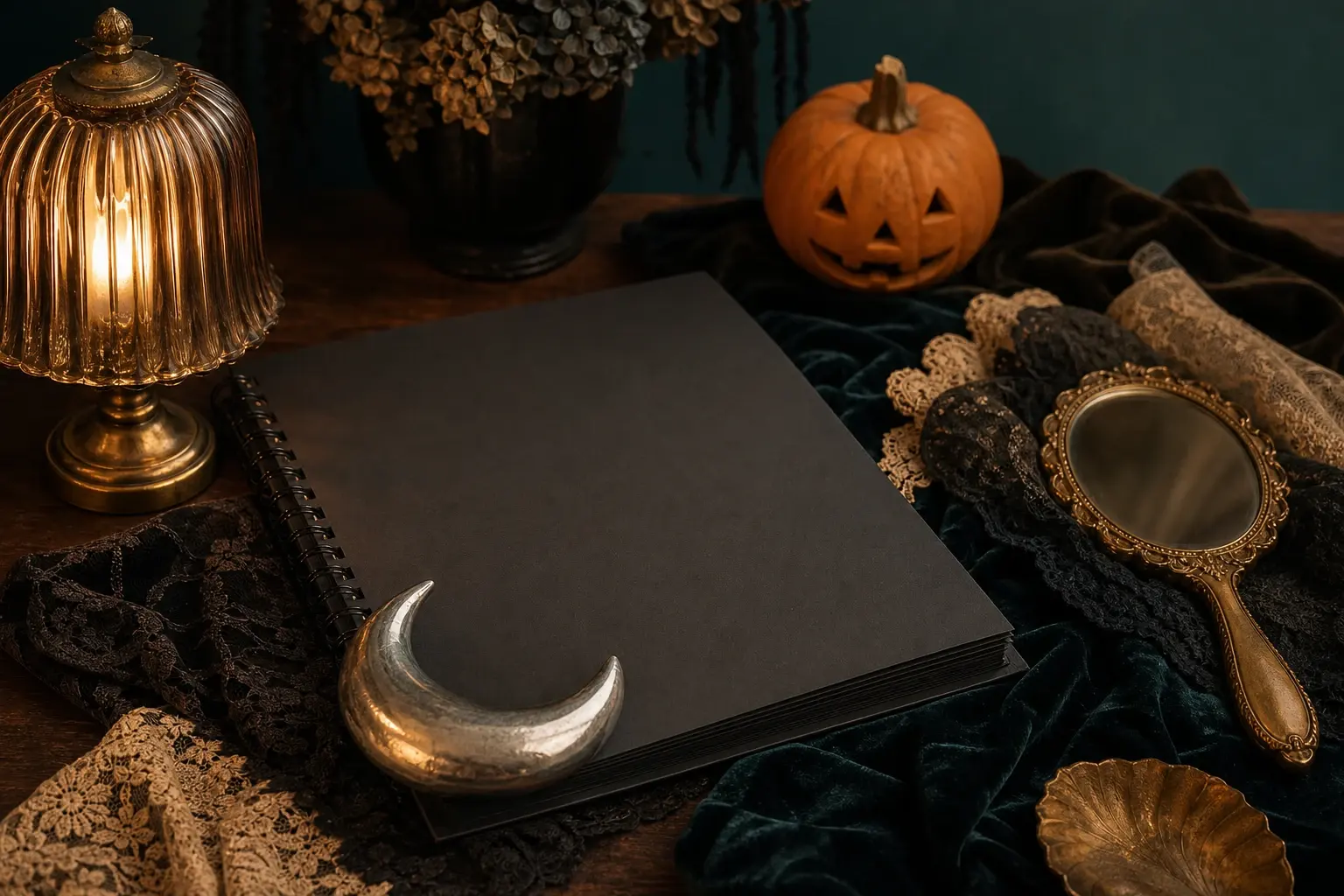 Prompt library
AI Halloween Prompts You Can Copy and Test Today
A prompt is useful when another person can run it and understand what should stay unchanged. This page gives you a complete Halloween portrait prompt, not a list of vague adjectives.
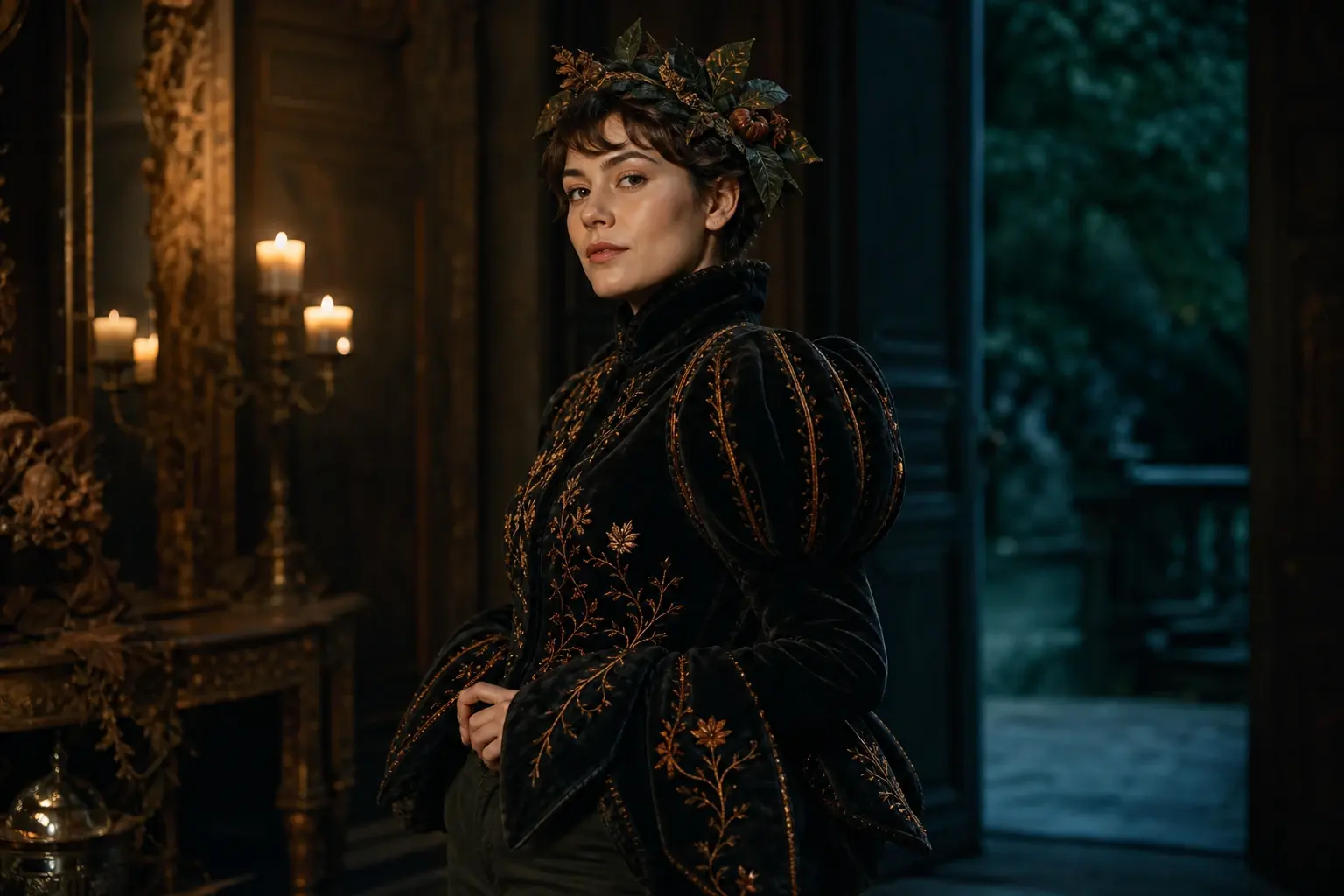 Photo edit
AI Halloween Costume Generator for Your Own Photo
Start with a photo you own, keep the person recognizable, and explore a wearable costume before you buy or build one. This page connects the trend to a real photo editor and a separate image-to-video workflow.
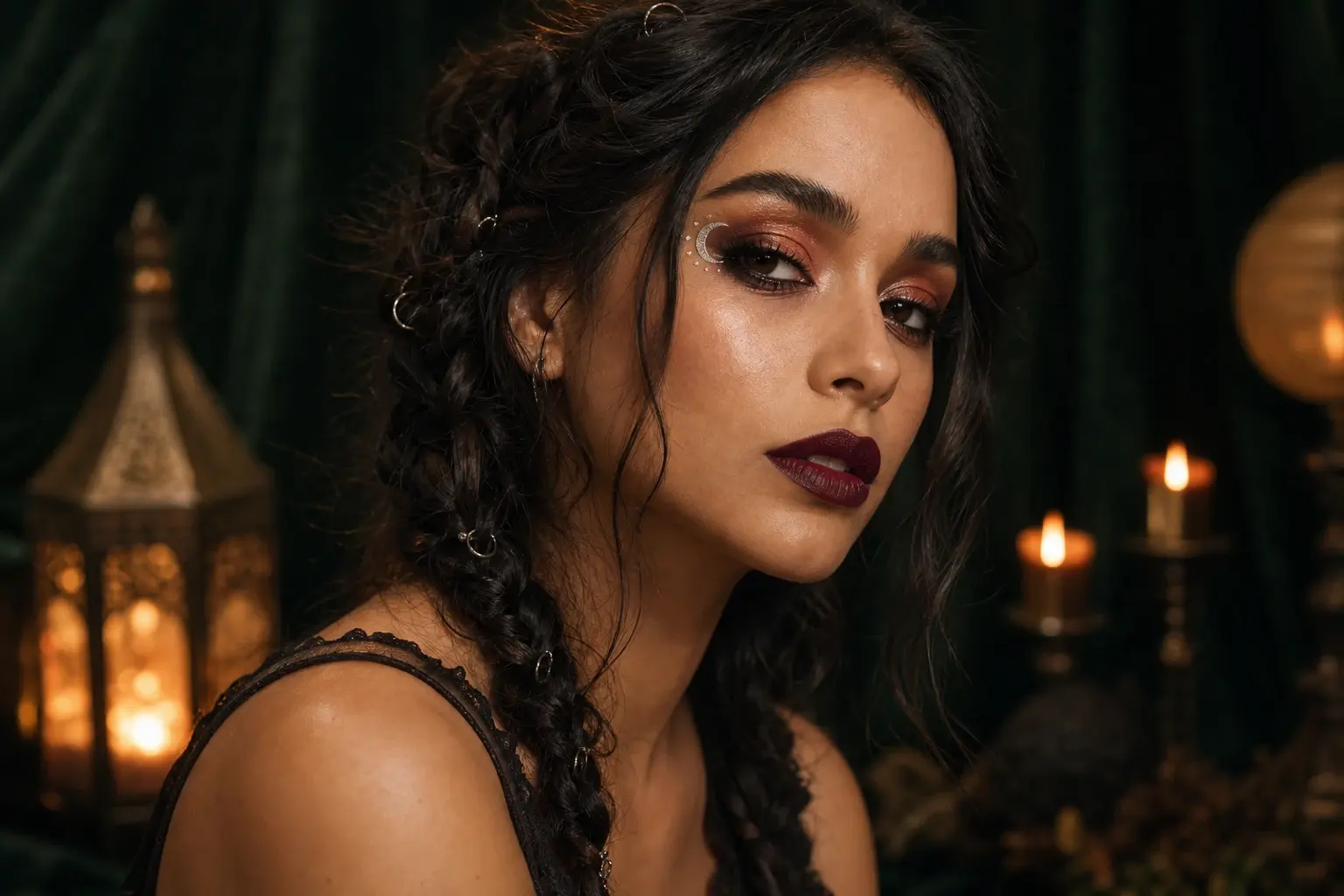 Portrait
Halloween Photo Editor for Makeup, Hair and Lighting
A Halloween photo editor should improve the picture you already have, not replace the person in it. This preset focuses on makeup, hair and studio light while keeping the face as the anchor.
Questions before you generate
Can I make a longer story from one prompt?
Start with one five-second shot. Longer stories need separate shots, continuity notes and editing; asking one generation to carry a whole narrative usually creates unstable geometry.
Can I add a person?
You can, but a person adds identity, anatomy and continuity requirements. Test the empty corridor first and add a character only when the environment is stable.
Why avoid a jump scare?
Sudden motion and scene changes are common failure points. A restrained clip is easier to judge and often feels more credible.
Is this an official Backrooms product?
No. It is an original liminal-corridor scene. The page does not claim affiliation with any creator, franchise or rights holder.